Spam call blocking you switch on yourself
Automatic blocking is off by default. When you turn it on, Realcaller can stop known spam before the phone rings, and you still get a card for every blocked call, so nothing disappears silently.
Does it block spam calls automatically?
Only if you ask it to. Out of the box it warns you and blocks nothing.
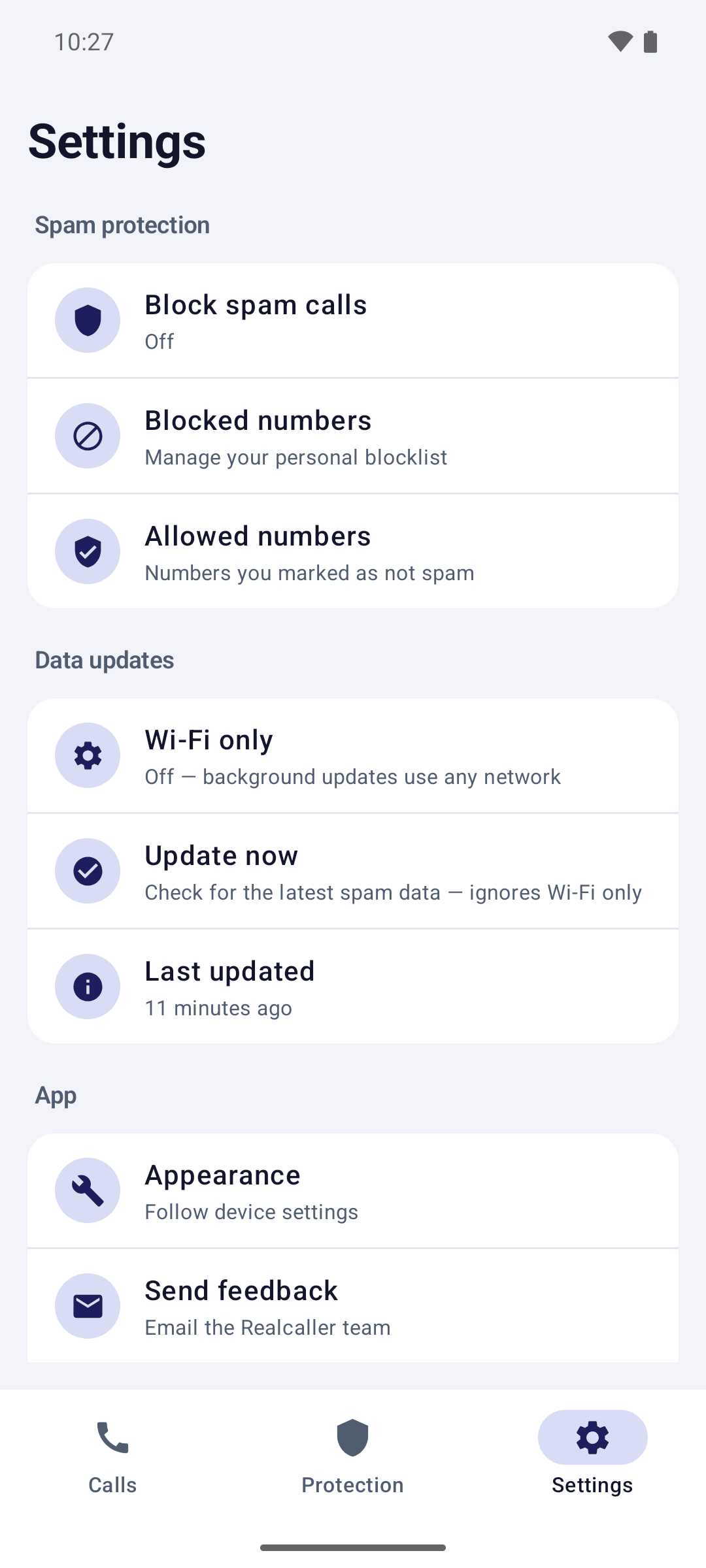
Blocking is opt-in. With it off, a spam call still rings and you see the card. Turn it on in Settings, under “Block spam calls”, and Realcaller rejects matching calls before they ring.
A blocked call never rings, but it still gets a card, and the call still appears in your phone’s own call log. The system’s missed-call alert is skipped.
What are the three blocking settings?
Off, known spam only, or known spam plus suspicious. You can change it any time.
- Off (the default)
- Nothing is blocked. You see a card for each screened call and decide yourself.
- Block known spam
- Numbers scored 0.70 or higher never ring. Suspicious calls still ring, with a card.
- Block known spam + suspicious
- Numbers scored 0.40 or higher never ring. This catches more, and it can also catch a call you wanted, so keep an eye on the cards.
The scores come from the data behind each number. How a number gets flagged.
What does a blocked call look like?
A card says so, with the last four digits of the number. The title reads “Blocked spam call” or “Blocked suspicious call”.
Blocked automatically. The body says it was blocked and never rang, and names the label when the number has one. Suspicious, blocked. Only appears when you chose “Block known spam + suspicious”. On your blocklist. A number you blocked yourself. Checked on the phone, with no network. Allowed by you. A number you marked “Not spam”. It is not checked and never blocked.
Where do I see what was blocked?
In the Calls tab. Each row shows the verdict, and blocked calls say so.
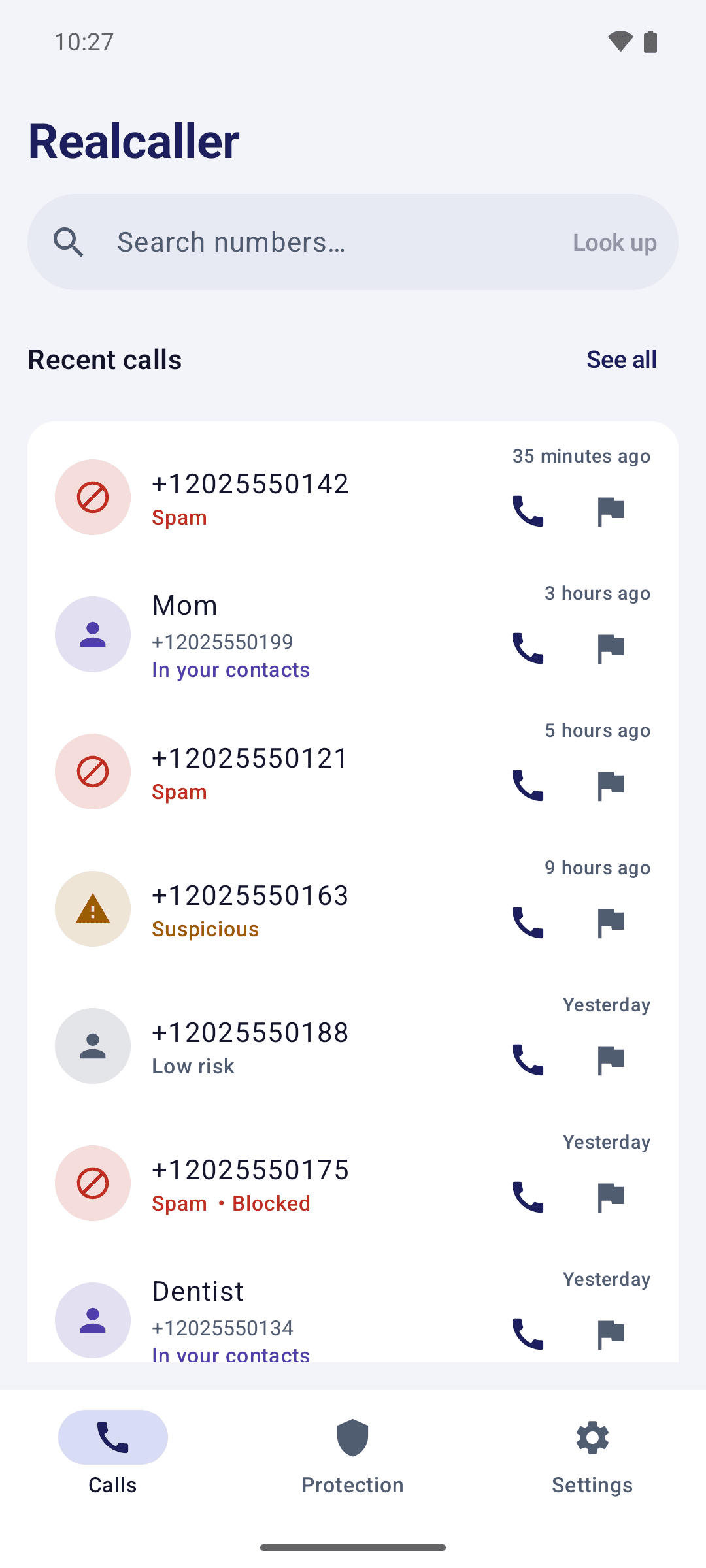
A blocked spam call in the call history, next to calls that were allowed through.
How do I use my own blocklist and allowed list?
Both live in Settings and stay on your phone. They are never sent to the server.
Block a number
Settings, then “Blocked numbers”: add a number by hand. You can also block from the call history, or right after a report.
Allow a number
Tap “Not spam” on a card. The number joins “Allowed numbers”: it skips the lookup and is never auto-blocked.
Change your mind
Remove a number from either list in Settings. Reporting a number takes it off the allowed list.
What do the Spam and Not spam buttons do?
They send a signal. They do not file a report and they do not block anything on their own.
- Spam
- Sends feedback to the server. It does not file a report and does not block the number.
- Not spam
- Sends feedback and also adds the number to your allowed list on the phone.
- Report
- Opens the two-step report. How reporting works.
Feedback taps send the number, a random device ID, the time of the call, the verdict shown and your tap. That is stored with the device ID. Your blocklist and allowed list themselves are never uploaded.
What are the limits of blocking?
It can only block what it can identify, on a phone that allows it.
- Blocking needs Android 10 or newer with Realcaller set as your caller ID and spam app.
- A number that is not in the data yet is not blocked. All the data today is from the United States (FTC and FCC), and Mexican numbers appear only after users report them.
- A wrong block is possible. If you marked a number as allowed, it is never blocked.
- Hidden caller ID cannot be read, so it cannot be blocked by number.
Blocking questions
Is blocking on by default?
Will I still know a call was blocked?
What if it blocks a real call?
Does it block texts?
Keep reading

Join the waitlist
Realcaller is in development and not on Google Play yet. Leave your email and country, and we will use them only for the waitlist.