How do I set up Realcaller?
Open the app, tap “Turn on protection”, choose Realcaller as your “caller ID & spam app”, and allow notifications. Contacts access and auto-block are optional.
Updated
Before you start
- An Android phone. The app installs on Android 9 and newer.
- For automatic call screening: Android 10 or newer and a SIM. Without them the app says so, and number search still works.
The steps
The app walks you through steps 1 to 4 in a short welcome of three pages.
Open the app and read the welcome
The first page explains what the app does. Tap through to the next page.
Choose it as your caller ID & spam app
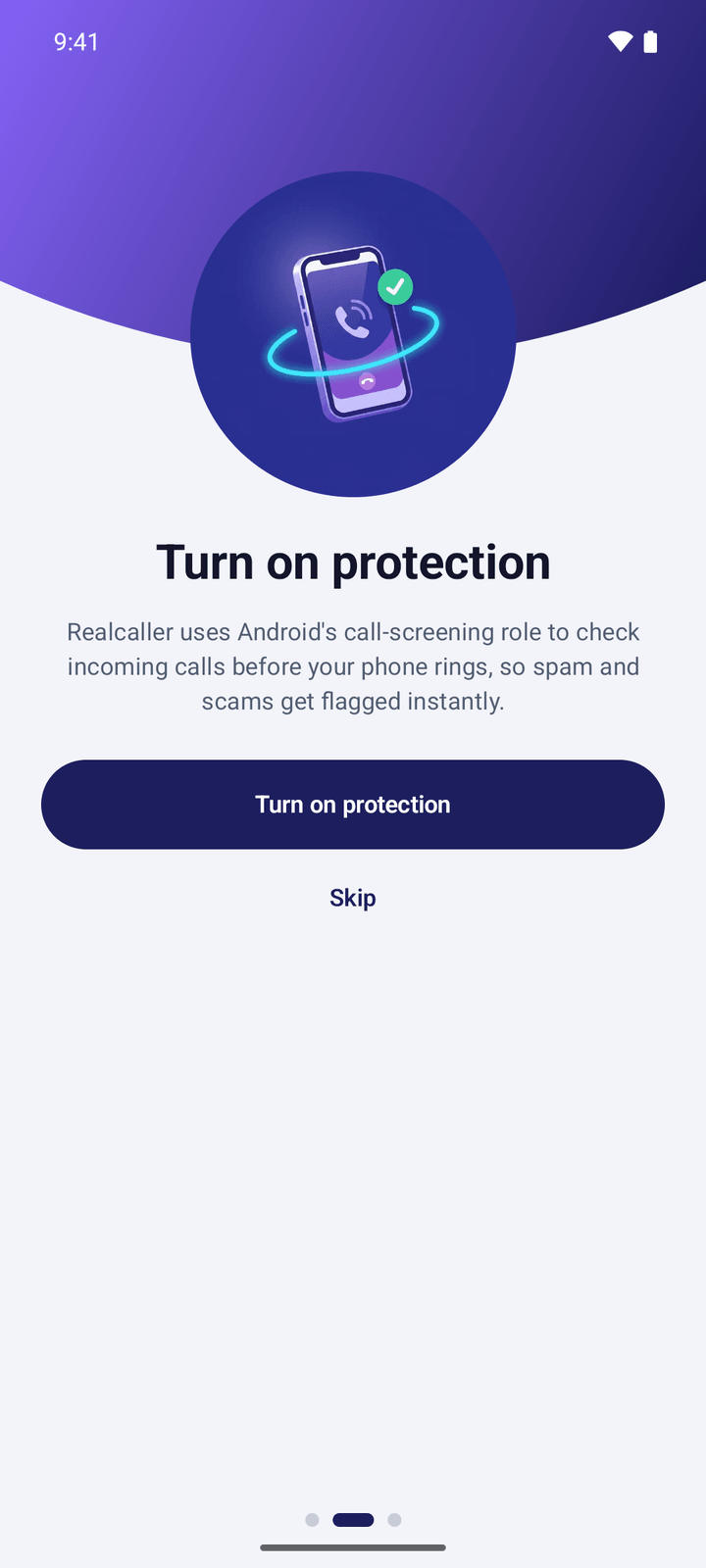
Tap “Turn on protection”. Android then asks which app should be your “caller ID & spam app”. Choose Realcaller. The wording of that screen can differ a little between phone brands. If you did not see a prompt, open the Calls tab, tap “Open settings” and choose Realcaller there.
Allow notifications
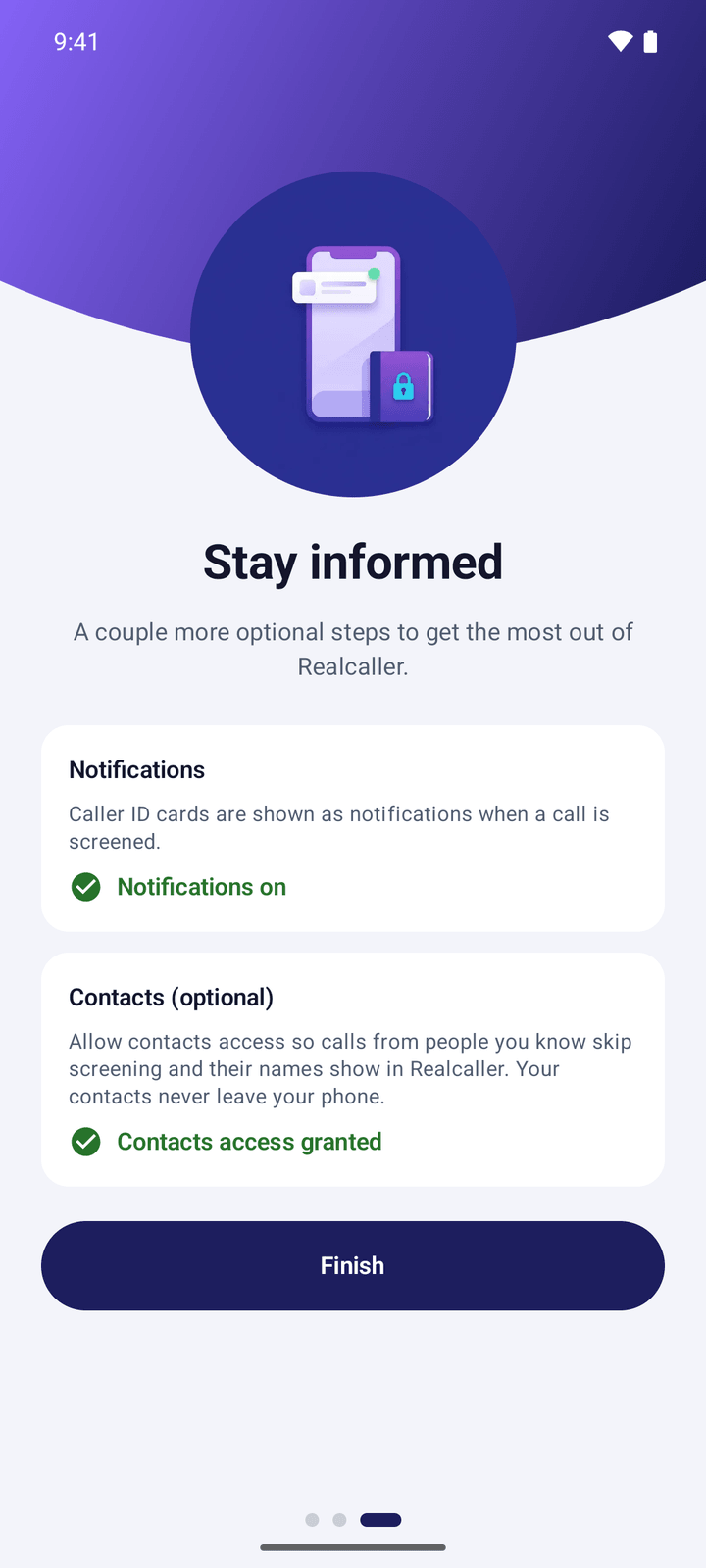
Cards are notifications. Without them, screening runs silently and you will not see any results. Android 13 and newer asks when the app opens; tap “Turn on notifications”.
Allow contacts (optional)
Allow contacts access so calls from people you know skip screening and their names show in the app. Your contacts stay on the phone and are never uploaded. You can skip this.
Decide about blocking (optional)
Blocking is off by default. To turn it on, open Settings and choose “Block spam calls”: block known spam, or known spam plus suspicious numbers. Blocked calls never ring, but you still get a card.
Check that it works
The Calls tab shows “Screening active” with a note that Realcaller is checking your incoming calls. To test the app, search a number you want to check in the number search and look at the verdict and the reasons.
What the app shows you
The two screens where you choose, as they look in the app. The numbers and people in the app are fictional.
What does each permission do?
Each one has a single job, and only the first two are needed.
- Caller ID & spam app
- Lets Android hand incoming calls to the app to be checked before the phone rings.
- Notifications
- Shows the result as a card. Cards come through two channels, “Spam and blocked calls” and “Other screened calls”, so keep both on.
- Contacts (optional)
- Read on the phone so contacts’ calls skip screening and names show. Never uploaded, stored or logged.
- Not requested
- Call log, text messages, location and microphone.
Something not working?
Most set-up problems come down to notifications, the call-screening role or an old Android version.

Not on your phone yet? Join the waitlist
Realcaller is in development and not on Google Play. Leave your email and country, and we will use them only for the waitlist.